Create your account
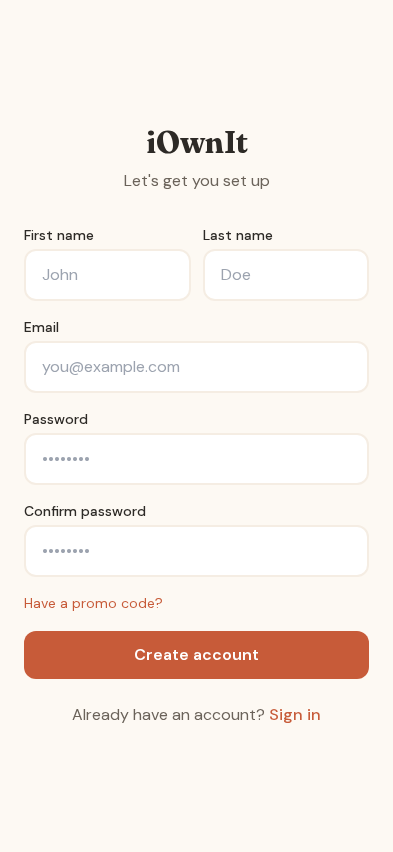
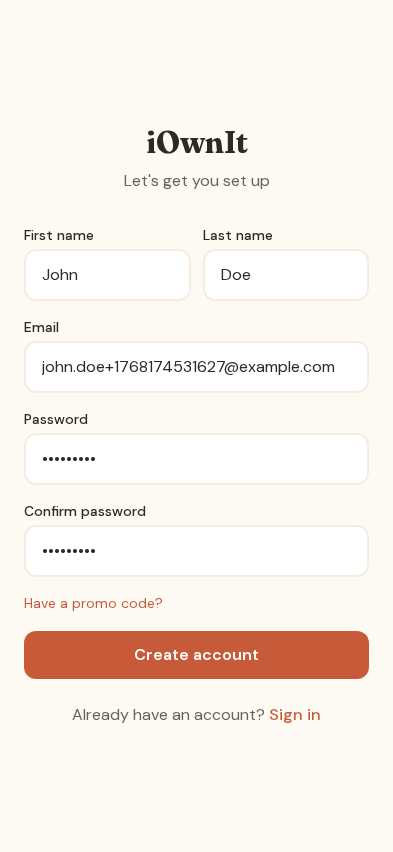
Enter your name, email and a password. That's the whole signup. If you have a promo code, there's a link under the password field.
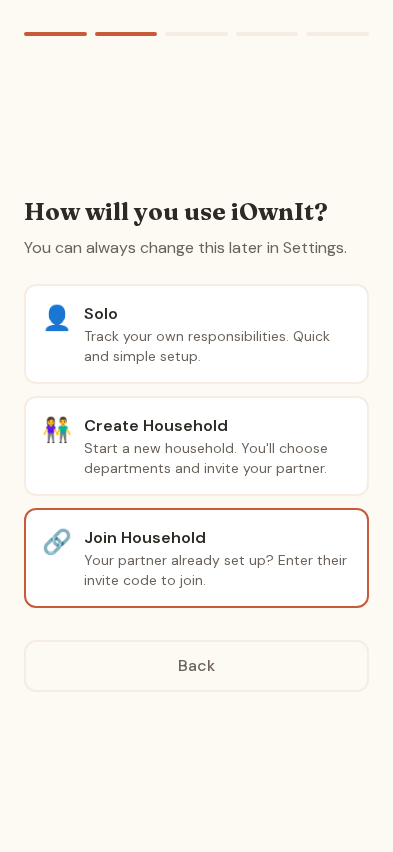
Choose how you'll use it
Solo tracks your own responsibilities. Household creates a shared setup you can invite your partner into, or lets you join one they've already made with an invite code.
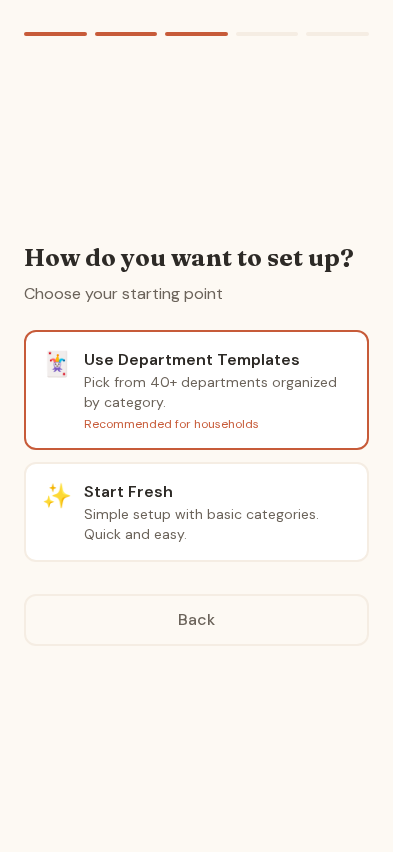
Then pick a starting point: department templates sorted by category, or a fresh start with basic categories you build on.
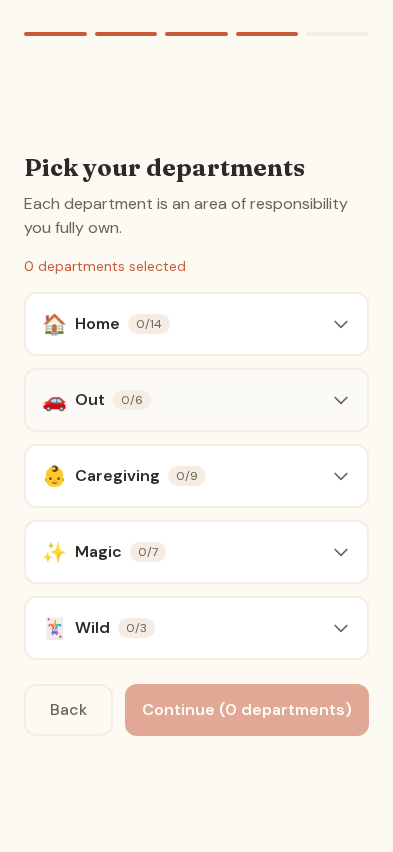
Pick your departments
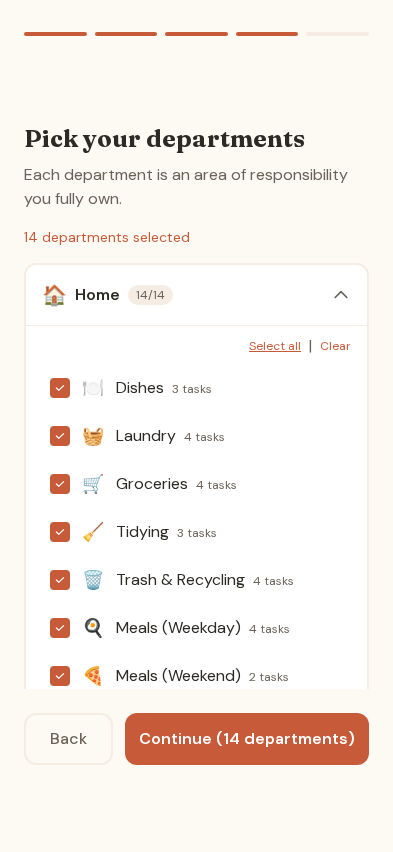
Departments are grouped into categories: Home, Out, Caregiving, Magic and Wild. Expand a category and tick the departments you'll own.
Each one shows how many tasks it brings with it, so you can see what you're taking on before you take it on.
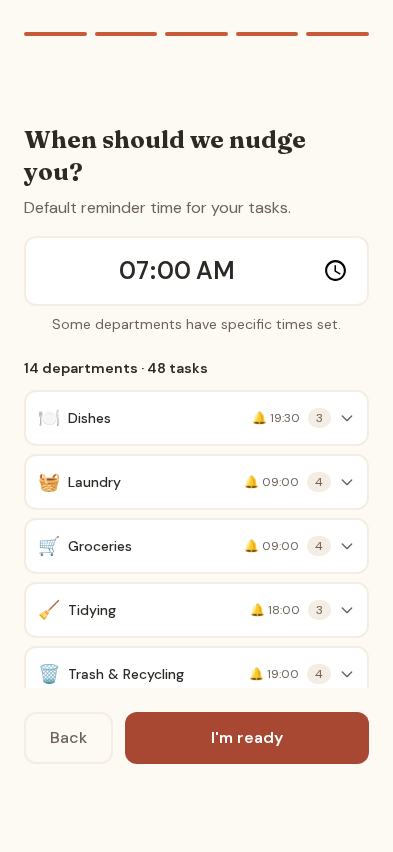
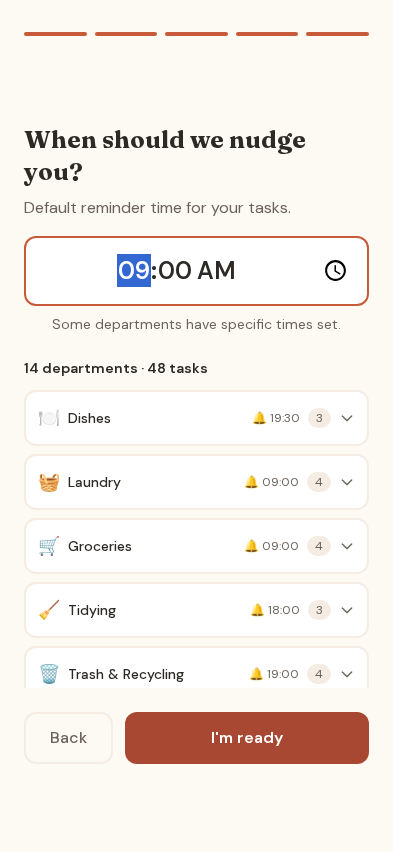
Set your reminder time
Choose a default time for your daily nudge. Individual departments can override it later, so the kitchen can nag you in the morning and tidying in the evening.
Your Today view
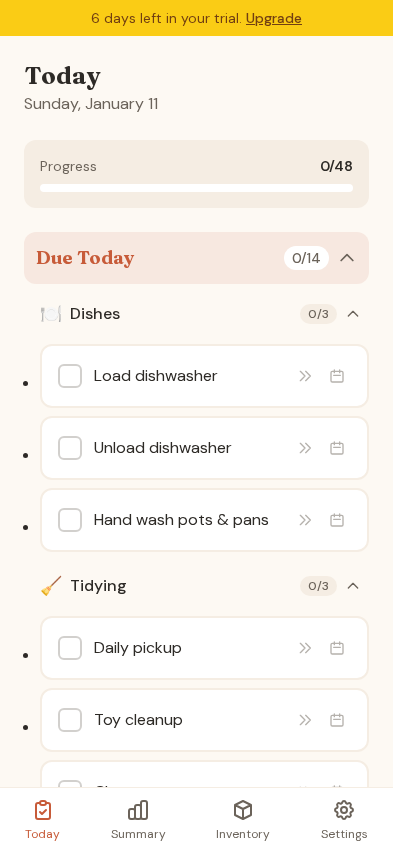
This is the screen you'll actually live in. Tasks are split into what's due today and what's due later in the week, grouped by department.
- Tap the checkbox to complete a task
- Use the arrows to skip it for today
- Use the calendar icon to defer it to a date
- Anything you don't do stays there
Track your progress
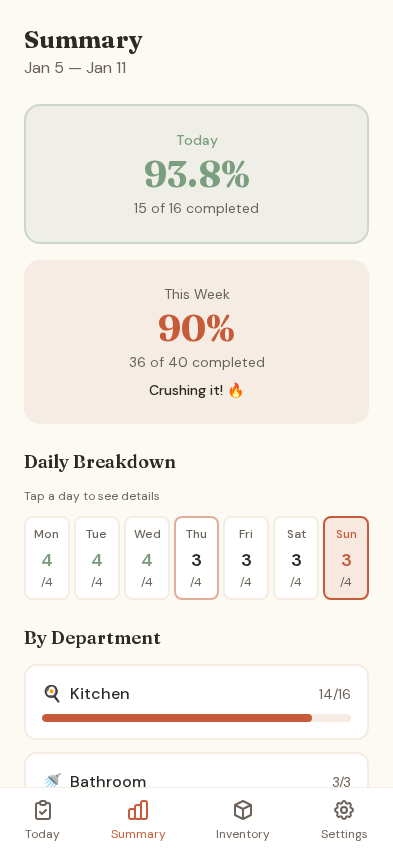
The Summary tab shows today's rate, the week's rate, a day-by-day breakdown and how each department is doing. Tap a day to see what happened on it.
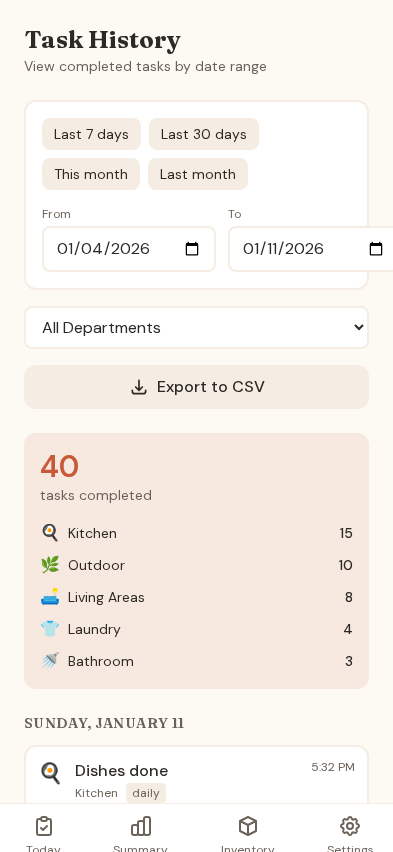
Task history
Filter completions by date range and department, then export to CSV if you want a record. Useful when you're trying to work out which department keeps slipping.
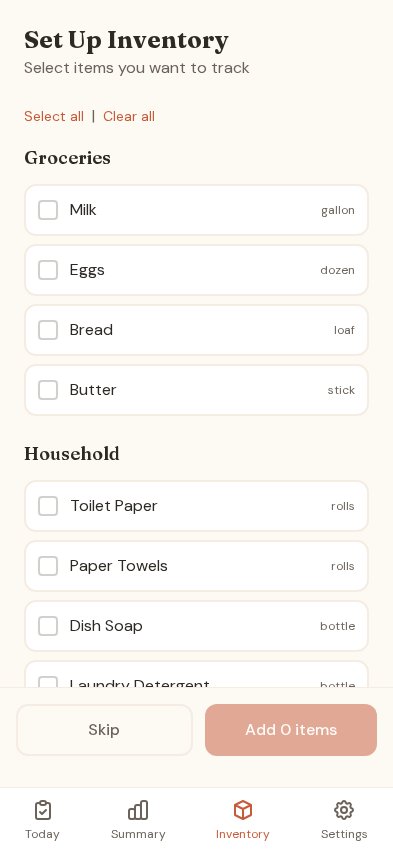
Inventory
Track the supplies you keep running out of. Set what counts as low, and the app raises a restock task on its own instead of waiting to be told.
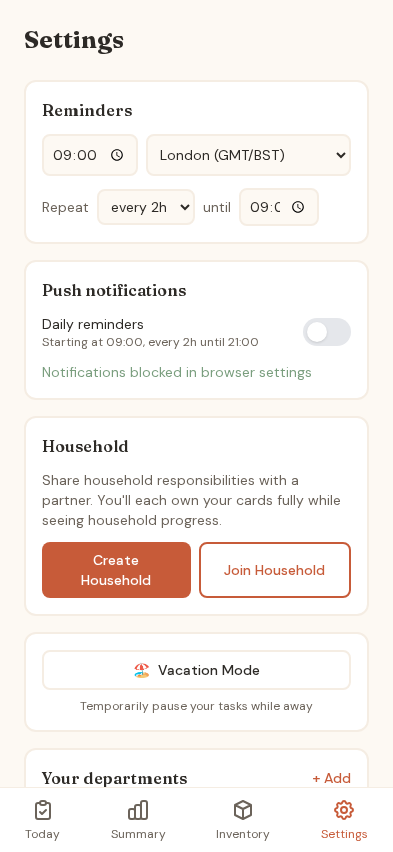
Settings and your departments
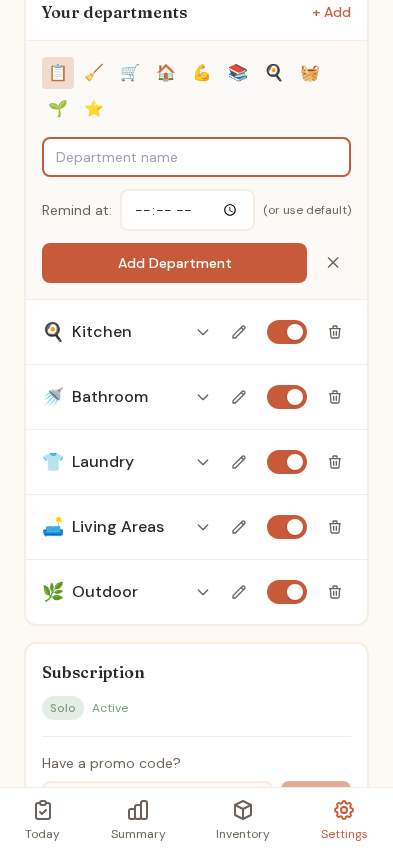
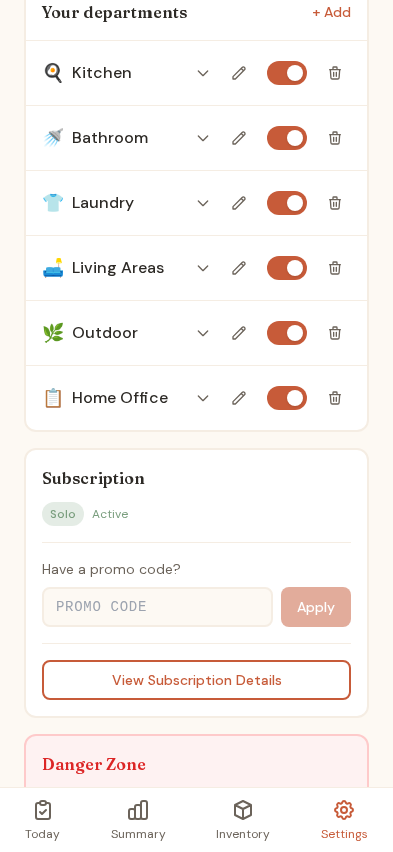
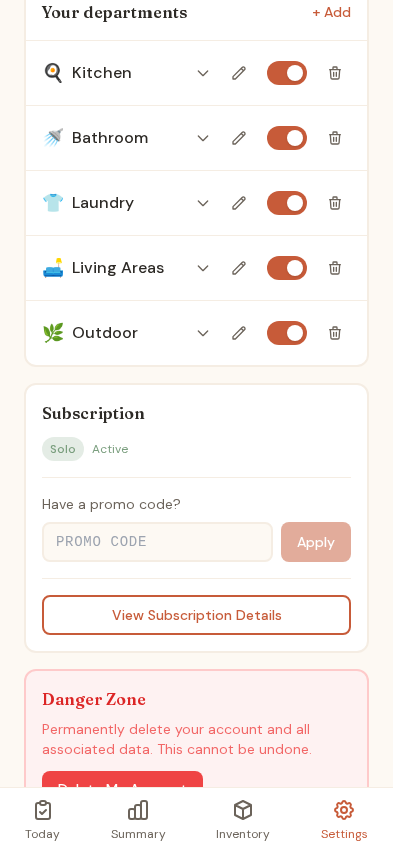
Settings holds reminders, push notifications and household setup. Scroll to Your departments for the full list.
- Name and emoji
- Reminder time
- Toggle to enable or disable
- Edit and delete
Add your own departments
Tap + Add, give it a name and an emoji, and it joins the list. Your household probably has something the templates never thought of.